
Hey, I’m Julkar Nain, and managing multiple affiliate projects at the same time is hard. Really hard. Imagine juggling 20+ projects, working with dozens of team members, tracking hundreds of tasks, and making sure nothing falls through the cracks. That’s exactly what I do every single day as a full-time affiliate project manager.
Before ClickUp, things were messy. Spreadsheets everywhere. Messages lost in Slack. Tasks forgotten. Deadlines missed. But then everything changed. ClickUp became the one tool that brought order to chaos. This is my story of how I became a ClickUp power user and now manage everything smoothly without breaking a sweat.
Why I Switched from Notion to ClickUp
Notion was great for notes and documentation. I loved it. But here’s the thing: I didn’t choose ClickUp on my own at first. My organization was already using it, so I had to make the switch whether I liked it or not.
At first, I was skeptical. I thought Notion was perfect. But when managing large teams and multiple affiliate projects, Notion started showing its limits. Tasks were hard to track. Team collaboration felt slow. There were no native time tracking features. And automation? Almost none.
ClickUp solved all these problems. It’s built for project managers who need to get things done fast. Here’s what made the difference for me: real-time collaboration, powerful automation, multiple views for different tasks, and built-in time tracking. Everything I needed was in one place.
Now, after using ClickUp for 2.5 years, I can honestly say it was the best forced upgrade I ever experienced. What started as an organizational requirement became my most valuable productivity tool. I went from being a reluctant user to a complete power user who can’t imagine working without it.
How I Organize Affiliate Projects in ClickUp
My Workspace Setup
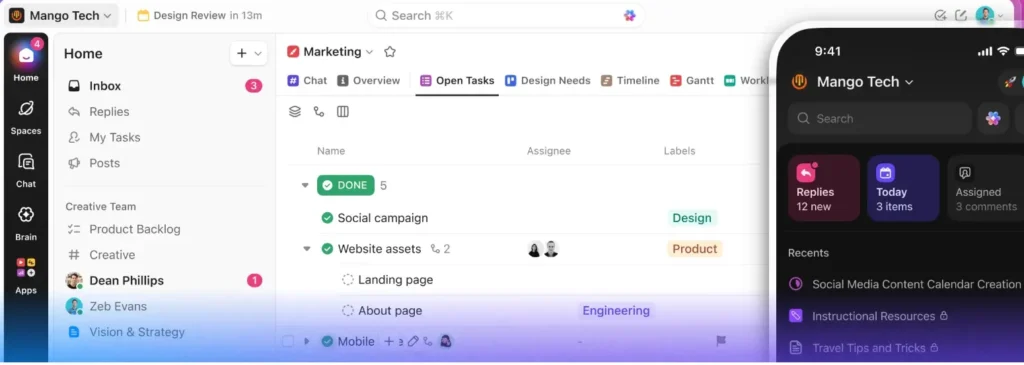
I use one main workspace for all my affiliate work. Inside this workspace, there are separate Spaces for each major affiliate program. For example, one Space for ABC eSIM affiliate projects, another for TrackReward affiliate tracking, and more.
Each Space contains Lists based on project stages: New Partnerships, Active Campaigns, Content Creation, Review & Approval, and Completed. This structure makes it super easy to see where every project stands at any moment.
Custom Statuses That Make Sense
Instead of using basic “To Do” and “Done” statuses, I created custom statuses that match real affiliate work:
- Prospecting (finding new affiliates)
- Onboarding (getting them started)
- Content in Progress (creating promotional materials)
- Waiting for Approval (client review stage)
- Live Campaign (actively running)
- Performance Review (checking results)
- Paused (temporarily stopped)
- Closed (completed or cancelled)
These custom statuses give everyone on my team instant clarity about what’s happening with each project.
Power User Features that I Love
Custom Fields for Deep Tracking
Custom fields are where ClickUp becomes incredibly powerful. I use these fields to track everything that matters in affiliate management:
- Dropdown field for Affiliate Type (blogger, influencer, coupon site, review site)
- Number field for Commission Rate (tracks what each affiliate earns)
- Date field for Partnership Start Date
- URL field for Affiliate Dashboard Link
- Money field for Monthly Revenue Generated
- Formula field that calculates Total Earnings (automatically multiplies clicks by conversion rate by commission)
- People field to assign Account Manager
These custom fields turn every task into a mini-database. I can sort, filter, and analyze data without ever opening a spreadsheet.
Automation Rules That Save Hours
Automation is my secret weapon. Here are the exact automations I set up:
When task status changes to “Onboarding”: Automatically assign the task to the onboarding specialist, add a checklist of 10 onboarding steps, set due date to 3 days from now, and send a Slack notification.
When a task is moved to “Performance Review”: Automatically add a comment asking for revenue numbers, change priority to High, and create a subtask called “Pull Analytics Report.”
When due date is tomorrow: Send an email reminder to the task assignee and post a comment tagging me.
When a task sits in “Waiting for Approval” for more than 48 hours: Automatically bump priority to Urgent and notify me.
These automations mean less manual work and fewer things slipping through the cracks.
Dependencies for Smooth Workflows
Affiliate projects have many moving parts. One task can’t start until another finishes. I use ClickUp’s Dependencies feature heavily.
For example: “Launch Campaign” task can’t start until “Get Client Approval” is done. ClickUp blocks the launch task and shows a warning. Once approval is marked complete, the launch task automatically becomes available.
This prevents my team members from jumping ahead and making mistakes. It keeps the workflow clean and logical.
Multiple Views for Different Needs
I don’t use just one view. Different situations need different views:
List View: My daily work mode. Shows all tasks with custom fields visible. Perfect for quick updates.
Board View: My weekly planning view. I drag and drop tasks between status columns. Great for visual team standups.
Calendar View: My deadline tracking tool. I see all due dates in one place. Helps me avoid bottlenecks.
Timeline View (Gantt Chart): My long-term campaign planning view. Shows how projects overlap and identifies resource conflicts.
Workload View: My team capacity planning tool. I see who’s overloaded and who has free time. Helps me balance work fairly.
Table View: My reporting and analysis view. Looks like a spreadsheet with all custom fields as columns. Perfect for client reports.
Switching between these views takes one click. Each view updates in real-time.
Templates for Speed
I created templates for every common project type. When a new affiliate partner joins, I don’t start from scratch. Instead, I use my “New Affiliate Onboarding” template.
This template includes:
- 15 pre-written tasks with descriptions
- Custom fields already filled in
- Checklist items for each task
- Proper task dependencies
- Assigned roles (not names, but roles like “Content Manager”)
- Due dates set relative to start date
Creating a new project takes me 30 seconds instead of 30 minutes.
Time Tracking Without Extra Tools
ClickUp has built-in time tracking. My team and I track time on every task. This data is gold for affiliate management.
It shows me which affiliates take the most support time, which projects are profitable, and where my team is spending too much energy. Every week, I export time reports to share with clients and prove ROI.
Docs and Knowledge Base Integration
ClickUp Docs live right next to tasks. I maintain a central knowledge base inside ClickUp with:
- Affiliate program guidelines
- Brand assets and messaging
- Commission rate sheets
- Email templates for outreach
- SOPs for common processes
My team members can access these docs without leaving ClickUp. They’re searchable, commentable, and linkable from any task.
Secret ClickUp Tips I Swear By
Tip 1: Use Subtasks and Checklists Strategically
Subtasks are for work that needs its own tracking (assignee, due date, status). Checklists are for simple steps within a task. Many people use them wrong. I use checklists for quick steps like “Send welcome email” or “Add to Slack channel.” Subtasks are for bigger work like “Create promotional video” that might take days.
Tip 2: Master Keyboard Shortcuts
I barely touch the mouse. Here are the shortcuts I use constantly:
- Q: Opens quick task creation
- Ctrl + K: Opens command center to jump anywhere
- Cmd + /: Opens shortcut menu
- B: Opens Board view
- L: Opens List view
- Cmd + Enter: Saves and closes task
These shortcuts save me minutes every day, which adds up to hours every month.
Tip 3: Use Priorities with a System
ClickUp has 4 priority levels: Urgent, High, Normal, Low. I have strict rules:
- Urgent: Only for true emergencies (client escalations, broken campaigns)
- High: Work due within 48 hours
- Normal: Standard work (80% of tasks)
- Low: Nice-to-have work that can wait
Limiting “Urgent” tasks keeps my team focused on what really matters.
Tip 4: Global Time Estimates for Better Planning
Every task gets a time estimate. I estimate conservatively (usually add 25% buffer). ClickUp then shows total estimated time for each project and compares it to available team hours. This prevents me from over-committing.
Tip 5: Saved Filters for Instant Reports
I created saved filters for common reports:
- “My High Priority Tasks Due This Week”
- “All Tasks Waiting on Client Approval”
- “Overdue Tasks Across All Projects”
- “Tasks Assigned to New Team Members”
- “High Revenue Affiliates Needing Check-in”
Each filter is one click away. No searching or manual sorting needed.
Tip 6: Email into ClickUp
Every ClickUp workspace has a unique email address. I forward important emails to this address, and they automatically become tasks. Client requests from email? Instant task. Affiliate questions? Instant task. This keeps everything in one system.
Tip 7: Custom Task IDs for Quick Reference
ClickUp assigns each task a unique ID (like #ABC123). I use these IDs everywhere: in Slack messages, emails, and meetings. Instead of saying “that affiliate onboarding task for the travel blogger,” I say “Check task #ABC123.” Everyone finds it instantly.
Tip 8: Recurring Tasks for Regular Work
Affiliate management has repeating work: weekly performance reviews, monthly payouts, quarterly strategy sessions. I set these as recurring tasks. ClickUp automatically creates the next instance when the current one closes. Nothing gets forgotten.
Tip 9: Goals and Targets
ClickUp Goals let you set measurable targets. I track:
- Number of new affiliates recruited this month (Target: 15)
- Total affiliate revenue generated (Target: $50,000)
- Average task completion time (Target: under 48 hours)
Tasks can be linked to goals, and ClickUp shows real-time progress. This keeps my team motivated and aligned.
Tip 10: Embed Live Reports in Dashboards
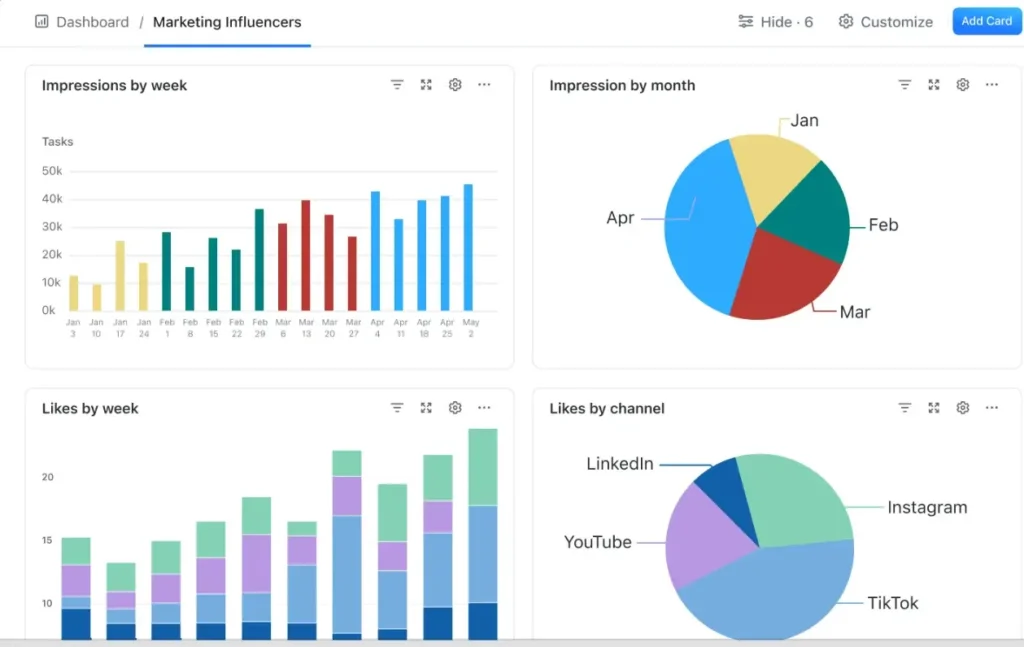
ClickUp Dashboards are incredibly powerful. I created a custom dashboard with widgets showing:
- Tasks completed this week (bar chart)
- Team workload (capacity chart)
- Projects by status (pie chart)
- Upcoming deadlines (list widget)
- Top performing affiliates (table widget)
This dashboard is my command center. One screen shows the health of all my projects.
ClickUp vs Notion: The Complete Comparison

| Feature | ClickUp | Notion |
|---|---|---|
| Task Management | Advanced with statuses, priorities, assignees, dependencies | Basic checkbox tasks only |
| Multiple Views | 15+ views (List, Board, Calendar, Timeline, Gantt, Table, etc.) | 6 views (Table, Board, Calendar, List, Gallery, Timeline) |
| Automation | 50+ triggers and actions, unlimited automations on paid plans | Very limited, requires third-party tools like Zapier |
| Time Tracking | Built-in native time tracking with reports | No native time tracking |
| Custom Fields | 15+ field types with formulas and rollups | Basic database properties |
| Dependencies | Full task dependencies with blocking and waiting relationships | No native dependencies |
| Real-time Collaboration | Instant updates, live cursors, fast syncing | Sometimes laggy, slower sync |
| Templates | Task templates, folder templates, and workspace templates | Page templates only |
| Workload Management | Workload view shows team capacity and prevents overload | No workload planning features |
| Goal Tracking | Native goals with progress tracking and task linking | No dedicated goal feature |
| Reporting | Built-in reports, dashboards, custom widgets, time reports | Very basic, requires manual setup |
| Email Integration | Email tasks directly into ClickUp | Limited email integration |
| Mobile App | Full-featured mobile app with offline mode | Good but less feature-complete |
| Pricing | Free plan available, Paid plans start at $7/user/month | Free plan available, Paid plans start at $8/user/month |
| Best For | Project managers, teams managing complex workflows, task-heavy work | Note-taking, documentation, knowledge bases, simple projects |
| Learning Curve | Steeper (more features to learn) | Easier to start |
| Customization | Extremely customizable (almost too much) | Customizable but simpler |
The Results: What Changed After Using ClickUp for 2.5 Years
After 2.5 years of using ClickUp, here’s my honest feedback on what changed:
My team productivity went up by 40% because everyone knows exactly what to do next. No more confusion or waiting for instructions.
Project completion time dropped by 25% thanks to automation and dependencies keeping work flowing smoothly.
Client satisfaction scores increased because nothing gets missed and communication is clearer.
I save 10+ hours per week on administrative work. Automation handles the boring stuff.
My team members report less stress because they can see their workload and deadlines clearly.
Revenue tracking became accurate because every project has custom fields showing real numbers.
The learning curve was steep at first. It took me about 3 months to feel truly comfortable. But once I mastered the core features, everything clicked. The time I invested in learning ClickUp has paid back 10x in saved hours and reduced stress.
Getting Started: How You Can Become a ClickUp Power User
You don’t need to use all these features on day one. I built my system over months. Here’s how to start:
Week 1: Set up your Spaces and Lists. Create basic tasks. Get comfortable with the interface.
Week 2: Add custom statuses that match your workflow. Start using different views (Board and Calendar are easiest).
Week 3: Create your first template for a common project type. Use it twice to test.
Week 4: Add custom fields to track important data (like revenue, client name, or project type).
Week 5: Set up your first automation (start simple, like auto-assigning tasks).
Week 6: Try task dependencies for projects with clear sequences.
Week 7: Build a simple dashboard with 2-3 widgets showing key metrics.
Week 8: Teach your team the keyboard shortcuts and share your templates.
By week 8, you’ll be a power user too. ClickUp becomes second nature. Your projects run smoother. Your team works better. And you’ll wonder how you ever managed without it.
Final Thoughts
For me, ClickUp isn’t just a tool, it’s the operating system for affiliate project management. It handles the complexity so I can focus on strategy and relationships instead of chasing tasks and deadlines.
The secret isn’t just using ClickUp. It’s using it strategically with custom fields, automation, templates, and smart workflows. That’s what separates casual users from power users.
If you manage multiple projects and large teams like I do, ClickUp can transform how you work. Start small, learn the powerful features, and build your system step by step. The results will speak for themselves.